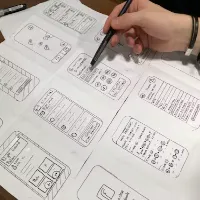
The process of developing low-fidelity wireframes is one of the most important parts of any UI/UX design project.
Wireframing allows you to organize your content and set up the visual order before getting to colors, typography, or high-fidelity designs.
In this article, you will learn what low-fi wireframing is and how to create your own low-fi wireframes in Figma following a simple guide.
What exactly is Low-Fidelity Wireframing?
“A low-fidelity wireframe is a basic visual representation of a website or app layout. It focuses on structural placement, content hierarchy, and navigation using simple lines, boxes, and monochromatic shapes in Figma without detailed design elements.”
A low-fidelity (lo-fi) wireframe is a basic visual representation of a digital user interface. It serves the purpose of demonstrating the structure of the website or app before the visual branding and code have been applied.
When low-fidelity wireframing is created, focus is put mostly on the basic aspects such as layout and positioning of content, navigation, and visual hierarchy rather than aesthetics.
Sketching out the key design structure in Figma using low-fidelity wireframes is quite effective. Unlike detailed design elements, low-fidelity wireframes emphasize content placement and functionality. The following is a step-by-step guide on how to do this in Figma.

Key Characteristics of Lo-Fi Wireframes:
- Monochrome Color Palette: Uses only grayscale tones (black, white, and shades of gray) to keep the focus on structure rather than visual appeal.
- Basic Geometric Shapes: Uses simple rectangles, squares, lines, and circles to represent UI elements like containers, buttons, and visual blocks.
- Placeholder Content: Uses crossed boxes ($\times$) to represent images and simple horizontal lines or Lorem Ipsum text for body copy.
How to Make Lo-Fi Wireframes in Figma Essay
Making lo-fi wireframes in Figma is very easy. Just remember these simple steps:
Step 1:
- Prepare the Canvas and Frames
- Open up Figma and create a new Design File.
- Hit F on the keyboard to open the Frames tool.
- Choose a specific frame size from the right panel, such as Desktop 1440×1024 or iPhone 14/15 Pro.
Step 2:
- Add Layout Grids and Frames
- Make sure to go to the right panel and click Layout Grid.
- Add a new grid and change the setting from Grid to Columns, and set the column number to 12 (desktop version) or 4 (mobile version).
- Use the Rectangle tool (R) and sketch out the approximate size and location of the layout’s key components, such as the Header, Hero Section, Content Blocks, and Footer.
Step 3:
- Add Image and Text Placeholders
- For images and videos, use a simple rectangle and add intersecting diagonal lines to represent the asset.
- For text elements and headings, use the Text tool (T) and simply write a few sample words in bold, or use a light gray horizontal block.
- For buttons and controls, use rounded rectangles to indicate the CTA button (Call-to-Action), and simply write a word, such as ‘Submit’ or ‘Get Started’.
Step 4:
- Sketch Out the Page’s Navigation and User Flow
- Add a few text elements within the page’s header to indicate the website’s main navigation items.
- Make sure to use dark gray for all buttons and controls, and keep the CTA buttons and links slightly darker than the others.
- Finally, make sure to group similar elements by simply clicking Ctrl + G (or Cmd + G for Mac users), and keep your Figma design panels organized.
Essential Best Practices of Creating Lo-Fi Wireframes
- Do Not Use Any Colors: To avoid discussion about colors during presentation, stick to black and white only and avoid any other colors.
- Build IA-Based Layouts: Arrange important elements at the top of the page to create visual hierarchy and follow the eye-tracking patterns of users.
- Make Sure It Is Quick and Dirty: Do not spend more than 10-15 minutes per screen designing a lo-fi wireframe since the purpose of such prototypes is to make it easier and faster to modify the design later.
How to install Figma
To use and install Figma on your computer, you can either use the web application for Figma or download the desktop app for a better experience. And I have prepared a guide below for both methods:
Method 1: Using the Figma Web Application
- Sign Up or Log In
- Visit the Figma Website.
- Choose “Sign Up” if you don’t have an account, or select “Log In” if you do.
- Then follow the instructions to create an account or sign in with your details.
Open Design Software:
- After you sign in, you can begin producing fresh records, approach all previous developments, and exploit all features of Figma easily in your browser.
Method 2: How to install Figma’s PC/ Desktop app
- For Windows: Download the Installer:
- Open Figma’s Downloads page.
- Find the “Desktop App” section and press “Download for Windows.”
Download and install Figma software:
- Download the setup installer, then run the file (usually named something similar to FigmaSetup.exe).
- Just follow the commands shown on the screen till you finish the installation.
Install/ Open Figma:
- Upon completion of the process of installation.
- Opening Figma can be made possible by placing it on the Start menu or by using a shortcut on your desktop.
- To access your files and get started with designing, log in using your Figma account credentials.
For macOS: Pick Installer Up:
- Hover over the Figma Downloads page. Click “Download for macOS” under “Desktop App”.
- Install Figma: Run the file by opening the downloaded installer (it often has a name such as Figma.dmg).
- Follow the instructions to move the Figma icon to the Applications folder.
- Open Figma: Once in the Applications folder, double-click on the Figma application from there.
- Authenticate yourself to access your data and begin designing by entering your Figma login details.
Method 3: Using Figma on Mobile Devices
- Figma is available as a mobile app that can be accessed on the move and includes a viewer-inclusive aspect.
- For iOS (iPhone/iPad): App stores will assist in opening the App Store on your device. Search for “Figma”, and after that complete the download.
- Open the Figma app and log in using your Figma account details to access your work.
For making Android applications.
- To obtain it from the Google Play Store:
- Just open the Google Play Store on your device and type in “Figma” to download the app.
- Sign in with your Figma account: Open the Figma device and input your Figma account credentials.
In Figma, you can create low-fidelity wireframes effectively by following these steps and tips, establishing a solid base for your design process.