Editing Multiple Blog Videos in Batches(2025)

Editing Multiple Blog Videos in Batches(2025), digitalanivipracticeb

🎬 Editing Multiple Blog Videos in Batches (2025 Edition) In 2025, blog videos are a vital component to audience engagement, SEO, and monetization. However, editing individual videos can be time-consuming, tedious, and a waste of time. Especially if you regularly and consistently create video content. That’s why batch editing is so valuable. Batch editing, regardless of whether you’re creating tutorials, reviews, or vlogs. Including it in your blog is a way to save time, make your work consistent, and allow you to keep a content pipeline going. 🔍 What’s Batch Editing in Video? Batch editing is the technique of editing multiple videos all at once or in the same flow, so that every video has the same format, transitions, branding, or export configurations. Rather than editing videos individually, you take each video and group similar things you want to do (e.g., trimming clips, adding subtitles, color grading) and apply them across your videos. Best suited for: 🧠 Benefits of Batch Editing Blog Videos 🧰 Tools Available for Batch Editing in 2025 🔸 For Udnow: 🔸For Mobile: 📝 Pre-Production Tips for Easier Batch Editing: Explore Content Themes Ahead of Time Script/Outline in Bunches Record all of the Videos in One Session. 🖥️ Batch Edit Blog Videos in 5 Steps ✅ Step 1: Organize All Raw Footage. Create a master project folder. Rename files. SEO-Tips-Clip1.mp4; Thumbnails.mp4; BlogOutros.mp4 ✅ Step 2: Develop a Master Template Project Within your video editing software, Duplicate this master template project for each new video in the batch. ✅ 3: Global Edits ✅ 4: Add B-Roll and SRT Subtitles. ✅ 5: Export in Batches. 📌How to Use Your Batch-Edited Blog Videos: In Your Blog Posts, In Your Email Newsletters, YouTube + Instagram: In Your Courses or Digital Products 📈 Bonus: How to add value with a batch video + blog SEO strategy For every video you batch edit: Conclusion Edit Smart, Scale Fast. It doesn’t have to take all of your time in 2025 to produce consistent video for your blog. Batch editing takes you away from the editing room, more content can be published, and your audience can grow faster. Frequently Ask Questations

Empathy Mapping in UX: A Guide to Empathetic Design for 2025

Empathy Mapping in UX, digitalanivipracticeb

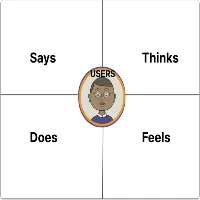
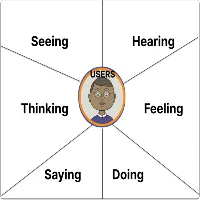
🧠 Empathy Mapping in UX: A Guide to Empathetic Design for 2025 A 2025 guide to designing with empathy. In an age of AI, automation, and ever-quickening pace of digital interactions, great design comes from the ability to acknowledge your users as real people, not just data points. Empathy mapping allows you to do just that. It doesn’t matter if you’re designing a blog, an app, a product page, or a content strategy. Empathy mapping is a way to put yourself in the user’s shoes, using their perspectives to see the world in a way that enables you to create meaningful and relevant experiences. In this 2025 guide, we’ll explore what empathy mapping is, why it’s so valuable in UX design, and how to create an empathy map that can improve user engagement, user trust, and ultimately user conversions. What Is Empathy Mapping? Empathy mapping is a collaborative UX tool used to visualize a user’s thinking, feeling, saying, and doing about a product or experience. Developed by Dave Gray, popularized by Agile and Design Thinking teams. Empathy mapping prompts you to dig deeper than demographic or behavioral analysis, with emotion, motivation, frustrations, and expectations being the critical ingredients to design user-first experiences. 🧩 The 4 Core Quadrants of an Empathy Map An empathy map’s four core quadrants typically consist of: Quadrant What it Captures Says What users say out loud as part of their interviews or feedback Thinks what users think, but do not say (fears, hopes) Does Observable things users do (scroll, search, click) Feels Users emotional state or response (frustrated, confused, excited) Some empathy maps are expanded and include: 🧠 Why Empathy Mapping Matters in UX Design. Users today are inundated with choices. If your design does not address their real needs and emotions, they will bounce quickly. Empathy maps allow you to: In short, empathy maps help make your UX human. 🛠️ How to Build an Empathy Map (Step-by-Step) 1. Identify Your Target User. 2. Gather Real User Data Don’t assume — get the facts by using: 3. Pick a Tool (Figma, Miro, or Notion). 4. Fill in the Quadrants Using the information you gathered in your research, fill in the map: 🗣 Says: “It takes so long to load the blog posts.” “I have no idea where to start with editing my videos.” 💭 Thinks: “I am wasting time just looking for tools.” “Other creators are more successful than I.” 🧍‍♀️ Does: They scroll quickly through blog pages. They click away after 10 seconds. They only watch the first 20 seconds of tutorial videos ❤️ Feels: Frustrated, overwhelmed, curious, and motivated Include Pains and Gains if you want more detail: 5 Review and Align Your UX Decisions Now, recall the empathy map, and answer the following: Empathy maps don’t simply inspire. They also drive real UX and content decisions. 📍 Empathy mapping in practice: Real-World UX Examples 🎨 UX Blog Home Page 📹 Video Editing Tool 🛒 E-commerce Checkout words 📈 SEO and Empathy Mapping: What’s The Relationship? When you empathize when designing, you: For instance, if a user says, “I hate wasting time on slow blogs,” you have SEO gold. That is a perfect long-tail keyword to use in a blog title like: 👉 “How to Make Your Blog Load Faster (Even If You Don’t Code)” 🧠 Bonus: Empathy Mapping Prompts You Can Use Today. You can do these during interviews or internal brainstorming with each other. Quadrant Ask These Says What do users say during onboarding, comments, and reviews? Thinks What do they worry about? What are their goals? Does What actions do they perform before and after visiting your blog or app? Feels What emotions are they expressing (with their face and/or through their actions)? 🔧 Tools to Develop Empathy Maps (Free & Paid) Final Remarks: Design for Feelings, Not Just Clicks. Empathy Mapping = Better User Experiences = Better Results. When you think about the users’ thoughts, frustrations, and emotions, you’re not designing for “traffic.” You’re designing for real emotions. The possibilities? Frequently Ask Questation

10 Usability Heuristics for Bloggers and UX Designers in 2025

10 Usability Heuristics for Bloggers and UX Designers in 2025 digitalanivipracticeb

10 Usability Heuristics for Bloggers and UX Designers in 2025 In 2025, the digital world is fast-paced, competition is high, and attention spans are short; therefore, usability is everything!. Blogging, developing a mobile app, or designing a digital product?. Agility and usability are key. That’s why Nielsen Norman Group’s 10 Usability Heuristics to the rescue! These heuristics have been around for decades – applied well, they can help you lower users’ frustration, increase retention, and subsequently improve engagement across all channels. 🎯 What Are Usability Heuristics? Usability heuristics are high-level design rules for identifying and resolving usability problems. Introduced by Jakob Nielsen, co-founder of Nielsen Norman Group, they provide high-level principles for usability and user experience that could be used by UX/UI designers, developers, and content creators. They’re called heuristics because they are rules of thumb — not rules exactly, but rather best practices to consider across a variety of products, platforms, and designs. Let’s dive into each of them and how you can apply them to improve your blog, product, or platform. The 10 Usability Heuristics for 2025 (with examples) 1. Visibility of System Status: What it means: Keep users aware of what is going on. How to do it: 🧠 UX Tip: Always provide real-time feedback—users hate the unknown. 2. Match Between the System and the Real World. What it means: Use language, visuals, and activities that are already familiar to users. How to do it: 🧠 UX Tip: Don’t confuse your audience—speak their language. 3. User Control and Freedom What it means: Users should always feel in control and enabled to correct mistakes. How to do it: 🧠 UX Tip: Freedom = trust. Give users freedom, don’t trap them. 4. Consistency and Standards What it means: Maintain a design and interaction that is predictable and familiar. How to apply it: 🧠 UX Tip: Consistency decreases confusion and reduces the learning curve. 5. Error Prevention: What it means: Avoid problems before they occur. How to apply it: 🧠 UX Tip: A system that avoids mistakes seems smarter and creates a safer experience. 6. Recognition Rather than Recall What it means: Don’t make users manage information across screens from memory. How to apply it: 🧠 UX Tip: Recognition is easier than recall — reduce cognitive load. 7. Flexibility and Efficiency of Use. What it means: Be accommodating to both inexperienced and experienced users. How to apply it: 🧠 UX Tip: Speed = Happiness. Allow experienced users to move more quickly! 8. Aesthetic and Minimalist Design. What it means: Ensure the interface is clean, focused, and to the point. How to do it: 🧠 UX tip: The less noise, the better the interaction. 9. Help users recognize, diagnose, and recover from errors. What it means: Use clear, friendly, and useful error messages. How to do it: 🧠 UX tip: Useful Error messages are also great UX. 10. Help and Documentation What it means: Back up your users when they need help. How to do it: 🧠 UX tip: Don’t expect users will figure it out – give them a path. How Bloggers Can Make Use of These Heuristics. These heuristics can be utilized in ways other than designing an app, and still be helpful to your blog: Heuristic Blog Example Visibility of Status “Loading more posts” indicator Real World Language Use “Read More”, not “Execute Action.” User Control Allow users to edit/delete their comments. Consistency Same style and layout on all blog pages. Error Prevention Confirm before the user unsubscribes or submits forms Recognition Highlight recent posts or the last article read by the user. Flexibility Keyboard shortcuts for users in the dashboard. Minimal Design Clean sidebar, large typography, fixed subordinate CTA Clear error messages “Email already subscribed – try logging in.” Help and documentation A search bar in the blog help section 🧠 In Closing: Heuristics = Happier Users = More Engagement. Incorporating these 10 usability heuristics will help you to create experiences that are: The outcome? More repeat visits, more engagement, and better SEO. Whatever you are creating – a blog, portfolio, or product site – good UX makes good business. Frequently Ask Questations

Enhancing Your Blog’s Visuals with UI Tools (2025)

Enhancing Your Blog's Visuals with UI Tools (2025), digitalanivipractice

Enhancing Your Blog’s Visuals with UI Tools (2025) In 2025, your blog is not only expected to be informational but also visually appealing. Users are looking for visual engagement, and that is where UI tools come into play. It does not matter if you are a lone blogger or a brand content creator using a team of bloggers — with the right UI tools, you can change your blog from “just another website” to a click-tastic, scroll-stopping experience. In this guide, we are going to show you how to use these top UI tools to build a visually engaging blog that is also going to improve SEO and keep readers coming back. Reasons Visual Design is Important in Blogging You have about 3 seconds to capture a visitor’s attention. Good visuals can: A visually appealing blog merges typography, layout, color, whitespace, images, and interactivity into a single experience. 🧰 1. Use a visual layout tool, started as Figma or XD. Why does this matter? You should always prototype how you want the look and feel to be before you publish anything. Figma and XD allow you to: How to do it: Pro Tip: Use Figma’s Auto Layout and Grid to position elements straight away and make them responsive. 🖼️ 2. Leverage Canva to Create Blog Images & Post Graphics. Every blog post is going to need visual elements — whether that’s: Canva gives you an easy option, especially if you’re not a designer. What to make with Canva: You want the same colors, fonts, and templates to retain your blog identity. 🎨 3. Optimize Your Blog UI with Colors and Fonts. Visual UI is more than images; it’s about color psychology and typography that contribute to readability and user sentiment. UI Recommendations: Helpful tools: 🧩 4. Use Interactive Elements with UI Widgets. Adding interactive elements keeps readers engaged longer and helps with UX. You may embed: Tools: – UI UX Tip: Do not go overboard with animations – they should be subtle, quick, and have a purpose. 📷 5. Incorporate quality visuals and a B-roll. Visual storytelling goes beyond just static images. Videos, GIFs, and B-rolls can bring your blog to life. What You Can Add: Get started here: Embedding Note: Use image compression programs like TinyPNG or Squoosh to help maintain site speed by compressing visuals. 📱 6. Mobile First – Use Responsive UI Frameworks. Your blog needs to look good on mobile, where over 70% of your traffic is likely originating. How to be responsive: Tools: 7. Understand What Works Using Visual UX Tools Now that you’ve added some engaging UI, track what’s working. Tools for Assessing UI Interaction: Use this engagement to inform your design, and get users to read more! 💡 Bonus UI (User Interface) Tips for Bloggers Final Thoughts: Great UI = More Clicks, More Time Spent, More Traffic. Your blog isn’t just a collection of articles—it’s an experience. With the right selection of UI tools, you can: Whether you’re designing a new homepage in Figma or creating an infographic in Canva, always be mindful of the user’s visual experience. Frequently Ask Questions

Design Psychology: The Impact of Color on UX and User Engagement.

Design Psychology. digitalanivipracticeb

Design Psychology: The Impact of Color on UX and User Engagement. Color is not just decorative — it can be a form of communication. Color is important in UX design because it helps guide users, elicit emotions, and incite action. Whether you are developing a blog, app, or landing page, the right colors can determine whether a visitor bounces or locks in a conversion. In this post, we’ll identify the psychology of color in UX design, how distinct shades of color influence user engagement, and how you can leverage color principles to increase user engagement, trust, and conversion via your blog or website. Design Psychology: The Impact of Color on UX and User Engagement. The Importance of Color Psychology in UX Color influences user attitude, interaction, and decision-making. Research shows that people make their impression of a product within 90 seconds – up to 90% of that decision is based only on color. In UX design, the use of color can help you: Having a better understanding of the psychology of colors themselves can enable you to make better informed selections based on the context of the website, to improve user experience, and possibly conversion. 🧠 The Psychology of Choosing Common UX Colors Let’s explore the emotional and functional traits of some colors commonly used in UX: 🔵 Blue: Trust, Calm, Professional. 🔴 Red: Energy, Urgency, Emotion. 🟢 Green: Growth, Health, Balance 🟡 Yellow: Happiness, Optimism, Attention ⚫ Black: Power, Elegance, Sophistication. ⚪ White: Simplicity, Clarity, Space Signifies purity, purity, freshness. 🟣 Purple: Creativity, Luxury, Wisdom. Using Color in UX Design 1. Determine a Color Hierarchy Color is an effective way to visually orient the user to the importance of certain items, for example, 2. Incorporate the 60-30-10 Rule A traditional colour rule, which gives you a good approach to balanced visual design: This structure ensures that you don’t overload the user. 3. Use Contrast for Readability Check high impact/visibility/contrast between the text and background – this helps to provide accessibility and legibility, which is a key aspect of good UX. For example, black text on a white background. You can check your contrast against headroom rules like: 4. Tie Colors into Your Audience Similarly, colors suggest an array of emotions, and in these contexts, both culture, age, and gender play an important role. Things to consider are: Research Tip: Check out Google Analytics or Hotjar heatmaps to confirm how users react to different colour elements in your site design. 5. Use color to indicate action. Use an energizing color, like red, green, or orange (whatever fits your colors best) to make your call-to-action buttons stand out! This visually indicates urgency and improves your click-through rate (CTR). Example: A green “Get Started” button on a white background is more effective than a drab gray button. 🎯 Color psychology, in action: Real examples from blogs. Here are real examples of how bloggers and content creators used color to assist with UX: ✍️ UI/UX design blog 📹 Video editing blog 📘 Educational blog Blue and white colors dominate credibility and cleanliness, with warm orange buttons for users to sign up or download free resources. 💡 Bonus UX Tip: Use only 2–3 core colors. 🛠 Money Colors Tool 🧠 Final Notes – Color is a User Experience Superpower. In UX, color is more than ornamental! It’s an effective tool for user emotion, confidence, decisions, etc. You can design experiences that are beautiful + effective + engaging by using color psychology. Whether you want to develop a readable blog or have conversions, the perfect color palettes are your mute friend for UX. Design Psychology: The Impact of Color on UX and User Engagement. Frequently Ask Questation

5 Steps to Design Your Blog Homepage: Figma Walkthrough

5 Steps to Design Your Blog Homepage: Figma Walkthrough. digitalanivipracticeb

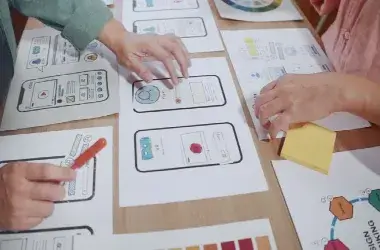
5 Steps to Design Your Blog Homepage: Figma Walkthrough Your blog homepage is the most important page when it comes to making a first impression. Whether you’re a straightforward personal blogger or building a brand from your blog, your homepage needs to tell your readers what your niche is, entice them to continue exploring, and navigate them to the content you want them to engage with. In this guide, we’ll use Figma to design a beautiful blog homepage. It’ll follow 5 easy-to-follow steps, including tips for layout, where to place your content, and cool SEO hacks for 2025. Why The Design of Your Blog Homepage Matters. Your blog homepage is your digital storefront. It should: A messy or outdated homepage can increase bounce rates and negatively impact SEO performance. So let’s make some improvements — step by step. Step 1: 🎯 Tip: Choose one primary CTA (Call-to-Action) like “Read the Blog” or “Start Here” and add 1–2 secondary CTAs to that page. ✏️ Step 2: Create a Wireframe in Figma. Begin with a low-fidelity wireframe. You can simply block out your homepage layout using Figma. To follow this structure: 🧱 Basic Homepage Structure: 🛠️ Figma Tip: Use Auto Layout and Constraints so that you have a responsive-friendly design from the start. Step 3: Implement Visual Design & Branding Once you’re satisfied with the wireframe, add color, fonts, and images to match your blog’s branding. ✨ Design Best Practices: Bonus Figma Plugin: 🧩 Step 4: Make Sure It is Mobile-Optimized & Responsive. 🔍 What To Be Checking In Figma: Your best to test it by going to Frame > Device Preview and testing it on the iPhone 14, Android, and desktop. Make sure: Functions down properly and looks great. Buttons and links are large enough to tap (min 44px). Content isn’t breaking or overflowing. You are stacking sections vertically (not side-by-side cards, keep it simple on mobile). 📦 Pro UX Tip: Leave the mobile menu as a hamburger icon, but make sure it expands into clear options (not hidden dropdowns). 🧠 Step 5: Adding A Few More Touches For SEO & Engagement 🔑 What SEO Elements Need To Be Started: 📈 What Engagement Boosting Items Can Be Used: 📂 Figma Export & Handoff When the design is looking great: 🎁 Bonus: Free Figma Blog Homepage Template (Download) Do you want a done-for-you template to get started on your blog homepage design? ➡️ Download My Free Figma Template for Bloggers (insert lead magnet link). This template is: Mobile optimized, SEO-optimized. Designed for blog engagement. Final Thoughts: Design With Intent. Your blog homepage is not just an entry point – it’s an introduction to your brand. With the help of tools like Figma and a targeted UX approach, you can create a design that effectively converts visitors into readers and, hopefully, loyal supporters. Take 1-2 days to plan, sketch, and test your homepage design using the above process, and you will be ahead of the majority of bloggers. Frequently Ask Questations

UX Design in Video Thumbnails: 2025 Guide

UX Design in Video Thumbnails

UX Design in Video Thumbnails: 2025 Guide In 2025, people’s attention spans are shorter, competition is greater, and first impressions are made in seconds (or fractions of seconds) — especially on YouTube, Instagram, and your blog. If you are a video creator or blogger, your video thumbnail is your click magnet. However, the twist is that it is not just design — it’s UX (User Experience). In this blog, we are going to show you how to implement UX principles into your video thumbnails to increase clicks, viewers’ satisfaction, and overall effectiveness of your content on any platform. 💡What Are UX Thumbnails? UX (User Experience) in thumbnails makes it easy, transparent, and emotionally engaging for your audience to choose your video. It means your thumbnail: The Importance of Video Thumbnails. From YouTube, 90% of the highest-performing videos on YouTube use custom thumbnails. Thumbnails affect: That’s why a thumbnail centered around the user experience shouldn’t be considered a “nice to have,” it should be a must-have 1. Visual Hierarchy: Make It Scannable, Immediately Your thumbnail will be processed in milliseconds. UX principle #1: Visual Hierarchy. What should users see first? ✅1. Best Practices 🎯 2. Mobile First Design Over 70% of video views are on mobile, so just think about: UX Tip on Mobile: 📱 If you can’t read your thumbnail at 160 x 90 pixels, you did it right. 🧠 3. Elicit Emotion or Curiosity (Cognitive UX) People engage primarily because of their feeling or their intrigue. UX isn’t only about function – it’s about emotion. Your thumbnail should: 🎨 4. Consistently Brand for Trust Elements you want to standardize: Bonus: Create a thumbnail faster by using a reusable Figma component or Canva template, so you will be able to maintain consistency. 5. Align Thumbnail with Video Content (Contextual UX) Have you ever clicked a thumbnail that sold you on something, and it was a completely different product? That’s bad UX. 💡 Tip: Use some microcopy like “Step-by-step” or “In 2 Minutes” to give clarity to your intent. 🔁 6. A/B Test Your Thumbnails UX is cyclical: Design → Test → Iterate. YouTube and TubeBuddy both allow A/B testing of thumbnails. Look for: To test, try changing: 7. Tools to Create UX-Optimized Thumbnails Let’s look at some of the popular tools UX designers and creators use: Tool Capabilities UX Benefit Figma Layers, templates, plugins Design Systems, Responsive Layout Canva Drag & drop, text overlaying, etc Accessible for non-designers Photopea Photoshop-like browser app, Complex effects free Remove.bg Face background removers, Fast subject isolation Thumbnail Test (via TubeBuddy) A/B test images Quantify the impact on performance 📈 SEO Tips for Video Thumbnails on Blogs If you blog and use videos (which are proven to increase engagement), you should consider the thumbnail’s SEO impacts: ✅ Bonus: Create a linking loop to related posts around the thumbnail for additional internal SEO loops 🧠 Conclusion: UX Makes Your Thumbnails Click-Worthy. Your video thumbnail is essentially the doorway to your content. When you employ UX thinking you are not just thinking about how nice it looks, but also about how well it functions. UX-based thumbnails are: When users are scrolling mindlessly through an endless sea of content, there is only one function your thumbnail is trying to achieve: the click. Make it count with UX. Frequently Ask Questations

Responsive Blog Layout 2025: Designing for Every Screen to Boost Clicks

Responsive Blog Layout 2025. digitalanivipracticeb

Responsive Blog Layout 2025: Designing for Every Screen to Boost Clicks Introduction By 2025, responsive blog design will have evolved from a best practice to an essential standard. With users now looking at blogs on smartphones, tablets, laptops, and wide desktop monitors, you need to ensure your layout changes and work smoothly on all devices. If your layout does not support responsive designs for all devices, users are not just going to leave the blog; they will be abandoning you as a potential reader, subscriber, conversion, and authority in the niche. In this blog, we will take a close look at why responsive design is vital, what a blog layout looks like for 2025, and how to create a responsive layout that helps with traffic growth, engagement, and SEO performance. What is a Responsive Blog Layout? A responsive blog layout automatically adjusts its layout, text, and media content to provide an optimal experience for the user, whether on mobile, tablet, or desktop. You no longer need to design separate pages for each device, instead, you want to create one flexible version that adapts based on modern web design techniques such as media queries, flexible grids, and flexible images. In 2025, responsive design is about more than just “shrinking to fit,” it includes optimizing the performance, experience, and interactivity across a massive spectrum of devices and viewports. 📱 Why Responsive Design Still Rocks in 2025 1. Mobile Traffic Is King Over 70% of blog traffic in 2025 occurs on mobile form factors. The minute a non-responsive layout lands in front of mobile users, they bounce. A responsive layout helps to ensure readability, scrolling comfort, and reader engagement even with a 6-inch screen. 2. Google Responds to Mobile-First Index. TA mobile-first index means a responsive layout directly correlates to http://www.google.com/ search engine optimization. If a blog loads quickly and is functional on mobile, it ranks higher results. 3. User Experience = Engagement If the blog layout breaks or simply becomes hard to read, readers will not stick around. Responsive design leads to longer average time on the site and lower bounce rates. 🧠 The Elements of a Top-Quality Responsive Blog Layout ✅ 1. Mobile-First Design with mobile screens first, then group. Use: ✅ 2. Fluid Grid Systems ✅ 3. Fluid Typography ✅ 4. Responsive Images and Videos Use: ✅ 5. Hamburger Menu for Mobile 🖼 Suggested Layout Example (2025) Images Mobile Version: Desktop Version: 🔍 Responsive Design Tools & Plugins (2025) 💎 Figma Figma’s Auto Layout and Responsive Resize capabilities allow you to see how your blog’s design will look in various breakpoints. 💎 Framer You can create responsive prototypes with real interaction logic and animations, before you begin constructing the product in code. 💎 WordPress Themes Themes such as Astra, Kadence, or Blocksy have built-in responsive options and are built using modern design frameworks that offer a range of design options. 💎 CSS Frameworks You can use responsive CSS libraries, such as: ⚡ Quick SEO Tips for Responsive Blogs 🚫 Common Responsive Design Pitfalls to Avoid: Using fixed-width containers rather than generating width by percentages. 📈 Case Study: A Blog That Received a 40% Increase in Clicks With Responsive Redesign 🧰 Actionable Checklist 📝 Conclusion As I said before, 2025 is not the time to go without a responsive blog layout. Whether you run a personal blog, business blog, or content hub, it will not only matter for your traffic, conversions, and ranking—it could be your competitive edge. Design for flexibility, test continually, and focus on delivering great UX on any device. Your readers—and search robots—will thank you. Frequently Ask Questations

Mobile vs. Desktop Blog Layout in 2025

Creating a Responsive Grid: A 2025 Guide for Designers and Developers, digitalanivipractice

Mobile vs. Desktop Blog Layout in 2025 In 2025, user experience (UX) is everything! Whether you’re a lone ranger blogger or the content strategist for a brand. Knowing how your blog or web layout performs on mobile vs desktop isn’t optional; it’s mandatory! When over 70% of web traffic now comes from mobile devices, your blog’s layout needs to do the heavy lifting for all screens and work effortlessly on them all. But what are the differences when it comes to a layout between mobile and desktop? How can we optimize both a mobile and desktop layout to keep readers engaged, and drive down bounces while boosting blog traffic? In this post, we will compare mobile vs desktop blog layouts for you, as well as provide actionable tips for improving both. Let’s get started. Mobile-First Browsing is Here For most of the early 2010s, a majority of blog readers used desktop devices. Fast forward to 2025, and it is the new norm for readers to browse on mobile devices first. Google made a mobile-first consideration to indexing and ranking sites, officially meaning Google was indexing the mobile version of your blog. You are losing blog readers, engagement, and some SEO juice if you are only creating a big-screen version of your blog because it looks broken or messy when viewed on mobile. 🖥️ Desktop Blog Layout: Pros & Cons ✅ Benefits of Desktop Layouts: ❌ Drawbacks of Desktop Layouts: 📱 Mobile Blog Layout – Advantages & Disadvantages ✅ Advantages of a Mobile Layout: ❌ Disadvantages of Mobile Layouts: Mobile and Desktop Layout: UX Differences Aspect Mobile Layout Usually present in the house, widgets, or CTAs Screen Size Small Vertical for touch interaction, large horizontal for mouse interaction Navigation Hamburger menus Sticky headers, full menus, dropdowns, and visible navigation. Sidebars Usually, it is removed or moved to the bottom Usually present in the house, widgets or CTAs Readability Small paragraphs, larger font size Not as restrictive with content display Page Speed needs to be fast More flexibility Call-to-Actions (CTAs) Thumb-friendly and minimal Can have more detail, or can be more visual Ad Placement Limited options More ad units can be used Why You Should Start With Mobile Design First. Mobile-first design means you design your layout for mobile first instead of starting with the desktop version, and here’s why it’s a good idea: 📌 Pro Tip: Check your blog’s mobile performance using tools like Google’s Mobile-Friendly Test. ✅ Mobile Blog Layout Best Practices in 2025 Desktop Design Still Matters – Here’s How Even with mobile trendsetting the technology landscape, desktop design and layout still play a role for: Make the desktop version of your blog the best it can be: 💡 UX Design Recommendations to Consolidate the Two Layouts 🔍 Blog Having Different Layouts and Its SEO Implications Search engines such as Google factor in mobile functionality and performance. For this reason, a blog with a poor mobile layout could potentially have: To improve your SEO: Conclusion: Optimize for Both — and Mobile First In our multi-device world, you need to create a seamless UX and experience for your blog for mobile and desktop. But if you have limited time and resources, do not worry about desktop. Focus on creating a mobile experience because, that’s where your traffic is coming from. That’s also where Google is noticing. With just understanding a few key differences in mobile vs. desktop layouts, and a few UX best practices, you can: Frequently Ask Questation

10 UX Design Tips for Bloggers to Boost Engagement and Traffic

10 UX Design Tips for Bloggers to Boost Engagement and Traffic

10 UX Design Tips for Bloggers to Boost Engagement and Traffic Meta Description: Are you looking to increase engagement and traffic on your blog? Here are 10 UX design tips that every blogger should implement to enhance user experience and keep readers returning. Introduction Blogging is more competitive than ever. Whether you love to write or have written for years, and are a complete newcomer, blogging is more competitive than ever before. There is more to blogging than writing great content, you need to not only write it and publish it, but also create an experience for the reader. This is where UX (User Experience) comes into play. Blogging without UX can be a frustrating experience for the reader. The ultimate goal for every blogger should be to increase their engagement, lower their bounce rate, and stand out amongst their competition. Here are 10 UX design recommendations to improve your blog’s usability and functionality. 1. Focus on Mobile Responsiveness Over 60% of blog traffic comes from mobile devices, so to get the most readers, your blog needs to be mobile-friendly. Use responsive design structures and test your blog, so you know how it appears on smaller screens. Tools like Figma and Chrome DevTools can help you easily prototype and see how a mobile layout will look on your blog. 🟢 Pro Tip: Use larger fonts, easily tappable buttons, and a simple layout as best practice for mobile. 2. Simplify Navigation. A confusing or messy menu can be one of the most frustrating parts of blogging. Menu navigation should be simple and intuitive, without limiting users’ options. Group similar blog posts under one tab, and use a search bar! A search bar for easy-to-find blog posts is good practice. Consider using breadcrumbs or categories/tags to help users navigate your content. 🟢 Quick Win: An easy way to improve navigation would be to create a menu that sticks to the top when it is scrolled to. 3. Enhance Readability With Visual Hierarchy Visual hierarchy directs the readers’ attention. Using consistent headings (H1, H2, H3), spacing, bullet points, and bold text will give your content structure. Avoid long paragraphs— break paragraphs into smaller sections to help with scanning. 🟢 Design Tip: Use contrasting colors for your title and body text to help with legibility. 4. Use White Space Effectively White space (also referred to as negative space) makes your blog feel clean, airy, and organized. Avoid jamming too much content into one area. Sufficient white space helps comprehension and reduces cognitive load. 🟢 UI Tip: Provide spaces around your text and between sections, for example, enough space so reading feels like you’re not working! 5. Optimize load time Slow-loading blogs kill visitors. Use optimized images, lazy loading, and lightweight themes. Use Google PageSpeed Insights or other tools to evaluate loading speeds and help improve your blog speed. 🟢 Pro tip: Compress your images using TinyPNG or the built-in export settings on Figma. 6. Create Clear Calls-To-Action. A call-to-action tells your visitors what they can do next: subscribe, comment, or share. You can create calls-to-action in your blog at different spaces in your blog (e.g., at the end of your articles or after informative paragraphs). You can also make buttons stand out with bright colors and action verbs. 🟢 Call-To-Action examples: “get weekly tips,” “start reading,” or “download free guide!”. 7. Add Visual Elements Images, infographics, GIFs, and videos help ease visual fatigue and create engagement. Use featured images for your blog posts and images to support your essential points. For creating graphics for your blog, Figma and Canva are user-friendly options. 🟢 Bonus Tip: Add ALT Text for SEO and accessibility. 8. Brand Consistently Brand consistency builds trust and recognition. Use a color palette, font pairings, and logo consistently across all pages. Your blog should feel like a cohesive experience, not an assortment of random styles. 🟢 Bonus Tip: Create a Figma component library for reusable blog features such as buttons, headers, and paragraphs. 9. Ensure Your Blog is Accessible. Accessibility is crucial for inclusive UX. Ensure there is enough color contrast, that keyboard accessibility is permitted, and that screen readers can comprehend your content. Implementing WCAG (Web Content Accessibility Guidelines) will improve the experience for all users, but can also improve SEO. 🟢 Tools to Use: Stark plugin in Figma, WAVE Accessibility Checker. 10. Get User Feedback and Iterate. UX is never “complete.” Implement a tool like Hotjar or Microsoft Clarity to observe what users do with your blog. Tracking their clicks, scroll depth, and bounce rate can help inform your layout, placement of content, and calls to action. 🟢 Continuous Improvement: Ask your readers for feedback through polls or in a comment section. Conclusion UX design isn’t just for e-commerce and the giants of tech. UX design is as important to a blogger as it is to e-commerce. By applying these ten UX design principles, you will generate more page views, better rates of page scrolling, and create a better experience for your readers. When people like using your blog, they spend more time on your blog, they will be back more, and will take action. Bonus Tip: Test and Optimize! Make sure to use tools such as Hotjar, Google Analytics, or A/B testing to learn about user behavior and adjust a design over time. UX is not a one-time effort, it is ongoing work! Frequently Asked Questions

About Website, digitalanivipractice

Quick Links

Contact Us

Copyright © 2026 Digital Ani Vi Practice. All rights reserved.

Optimized with PageSpeed Ninja